On This Page
Set Up Customer Authentication for Click to Pay
Click to Pay
Follow these steps to use the
Business Center
to enable customer
authentication through Click to Pay
. Authentication methods differ in
each region and are dependent on the issuer, the cardholder device, and the Click to Pay
configuration. These authentication methods are
available: - 3-D Secure
- Payment Passkey
- Card verification value (CVV)
- One-time password (OTP)
- Log in to theBusiness Center:Production URL:If you are unable to access this page, contact your sales representative.
- In theBusiness Center, go to the left navigation panel and choosePayment Configuration>Unified Checkout.You must haveClick to Payenabled as a digital payment method in order to use this method of authentication. ClickManageto view the digital payment methods that you have enabled.
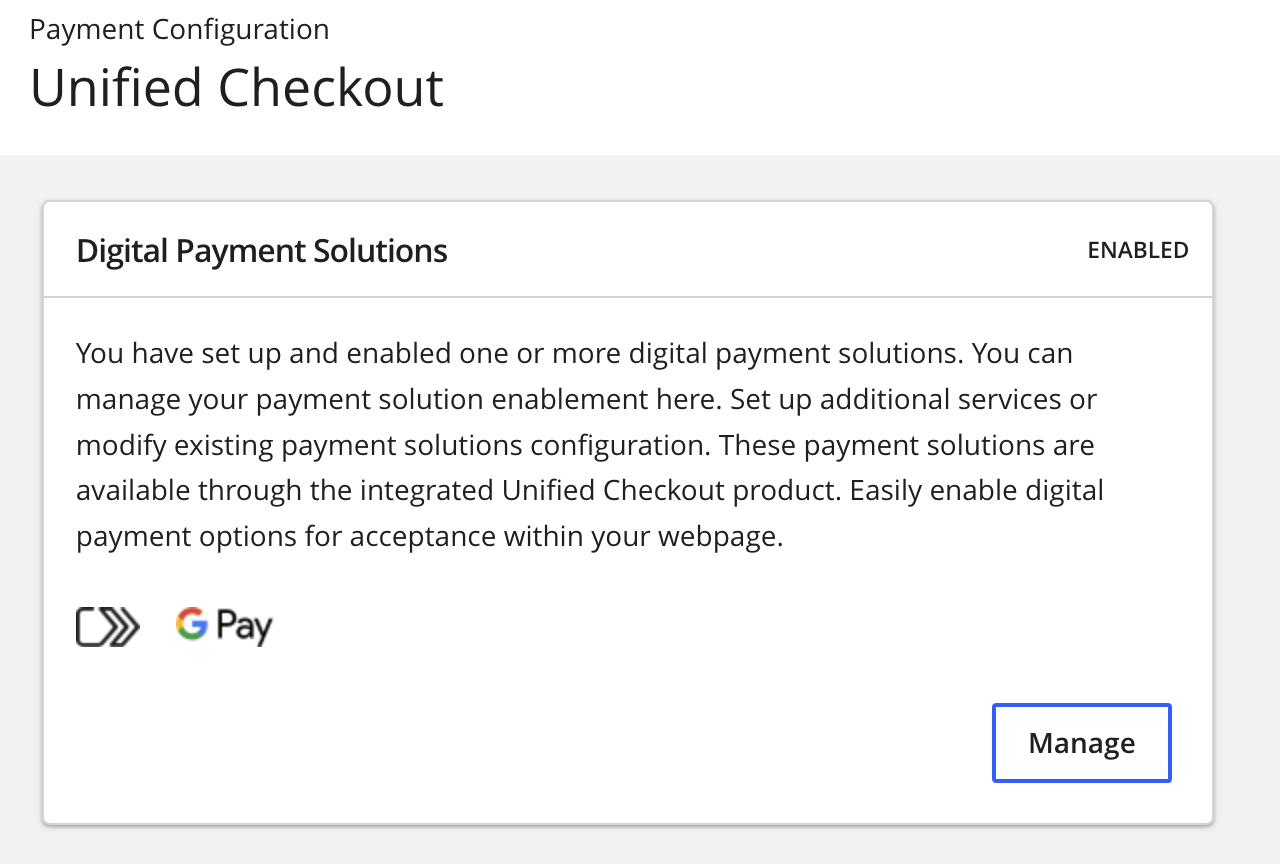 IfClick to Payis not enabled, clickOnnext toClick to Pay.
- ClickSet upunder Value Added Solutions. The Value Added Solutions page appears.

- ClickSet upto set up3-D Secure. The 3DS page appears.
- Enter the required information in the Merchant Details section. You must enter the information that is provided to you byyour acquirer or processor.

Step Result
This completes the authentication setup for the entered acquirer merchant ID and BIN. If you do not know what these values are, you must contactyour acquirer. Completing this information enablesVisa Acceptance Solutionsto send Visa the information that is required for authentication.IMPORTANTCharges for3-D Securemay apply. You must speak withyour acquirerfor more information about the charges associated with3-D Secure.